

This article is a living collection of tweaks I apply to my Windows 11 installations, both personal and company-managed. It covers the settings I change, the tools I install, and the WSL and container setup I use to make a fresh Windows installation work the way I want.
Debloat Windows
Before applying the tweaks below, I debloat Windows using Win11Debloat. Run the following command in PowerShell:
& ([scriptblock]::Create((irm "https://debloat.raphi.re/")))Windows tweaks
Windows 11 comes with plenty of defaults I don't want or need. Let's fix the regional settings, Explorer, taskbar, power options and wallpaper.
Some of these settings overlap with Win11Debloat. I keep the explicit script below because it documents and reinforces my preferred configuration.
Set display scaling to 100%
I prefer Windows to use 100% display scaling. The following script sets the default DPI value to 96, which corresponds to 100% scaling for the current user account:
& {
  $desktopPath = 'HKCU:\Control Panel\Desktop'

  Set-ItemProperty -Path $desktopPath -Name LogPixels -Type DWord -Value 96
  Set-ItemProperty -Path $desktopPath -Name Win8DpiScaling -Type DWord -Value 1

  Write-Host 'Display scaling set to 100%.' -ForegroundColor Green

  $choices = @(
    [System.Management.Automation.Host.ChoiceDescription]::new('&Yes', 'Sign out now')
    [System.Management.Automation.Host.ChoiceDescription]::new('&No', 'Sign out later')
  )

  $choice = $Host.UI.PromptForChoice(
    'Display scaling',
    'Sign out now to apply the change?',
    $choices,
    1
  )

  if ($choice -eq 0) {
    Write-Host 'Signing out...' -ForegroundColor Yellow
    shutdown.exe /l
  } else {
    Write-Host 'No sign-out performed. Sign out later to apply the change.'
  }
}
Save your work before answering Yes. Signing out closes your current session and may close applications.
Improve formatting
This changes regional formats such as dates, times, numbers and decimal separators for your Windows user account. It does not change the Windows display language. The new culture is picked up by subsequently started PowerShell sessions.
Set-Culture -CultureInfo nl-NL
Stop-Process -Name explorer -Force
Tweak the desktop, Explorer, Search and the taskbar
Let's change multiple settings at once:
- Hide the desktop icons. I only want to see my wallpaper.
- Remove Bing from the Start menu search -- I don't need web search.
- Hide Search on the taskbar.
- Restore the classic context menu.
- Show file extensions in File Explorer.
- Disable the Windows 11 taskbar widgets, as I don't use them.
- Use a dark taskbar.
Here is the code:
& {
  $basePath = 'HKCU:\Software\Microsoft\Windows\CurrentVersion'
  $steps = 7

  # 1) Desktop icons (set $value = 1 to hide)
  Write-Host "[1/$steps] Setting desktop icon visibility..." -ForegroundColor Cyan
  $value = 1
  Set-ItemProperty -Path "$basePath\\Explorer\\Advanced" -Name HideIcons -Type DWord -Value $value

  # 2) Remove Bing from Start menu search (set $value = 1 to enable)
  Write-Host "[2/$steps] Disabling Bing in Start menu search..." -ForegroundColor Cyan
  $value = 0
  Set-ItemProperty -Path "$basePath\\Search" -Name BingSearchEnabled -Type DWord -Value $value

  # 3) Hide Search on the taskbar
  Write-Host "[3/$steps] Hiding Search on the taskbar..." -ForegroundColor Cyan
  Set-ItemProperty -Path "$basePath\\Search" -Name SearchboxTaskbarMode -Type DWord -Value 0

  # 4) Classic context menu (Windows 10 style)
  Write-Host "[4/$steps] Restoring Windows 10-style context menu..." -ForegroundColor Cyan
  $clsidPath = 'HKCU:\Software\Classes\CLSID\{86ca1aa0-34aa-4e8b-a509-50c905bae2a2}\InprocServer32'
  if (-not (Test-Path $clsidPath)) {
    New-Item -Path $clsidPath -Force | Out-Null
  }
  Set-ItemProperty -Path $clsidPath -Name '(Default)' -Value ''

  # 5) File extensions in Explorer (set $value = 1 to hide)
  Write-Host "[5/$steps] Showing file extensions in Explorer..." -ForegroundColor Cyan
  $value = 0
  Set-ItemProperty -Path "$basePath\\Explorer\\Advanced" -Name HideFileExt -Type DWord -Value $value

  # 6) Disable Windows 11 taskbar widgets
  Write-Host "[6/$steps] Removing Windows 11 taskbar widgets..." -ForegroundColor Cyan
  Get-AppxPackage *WebExperience* | Remove-AppxPackage

  # 7) Dark taskbar (custom color & disable transparency)
  Write-Host "[7/$steps] Setting dark taskbar and disabling transparency..." -ForegroundColor Cyan
  $personalizePath = "$basePath\\Themes\\Personalize"
  Set-ItemProperty -Path $personalizePath -Name "AppsUseLightTheme" -Value 1 -Type DWord
  Set-ItemProperty -Path $personalizePath -Name "SystemUsesLightTheme" -Value 0 -Type DWord
  Set-ItemProperty -Path $personalizePath -Name "EnableTransparency" -Value 0 -Type DWord

  # Restart Explorer once to apply all changes
  Write-Host "Restarting Windows Explorer to apply changes..." -ForegroundColor Green
  Stop-Process -Name explorer -Force
  Write-Host "All tweaks applied." -ForegroundColor Green
}
Hibernation
I want to enable hibernation. When I press my laptop's power button, I want it to hibernate, and I want the Hibernate option to appear in the Start menu's power menu.
& {

  if (!(whoami /groups | findstr S-1-16-12288)) {
    throw 'Run PowerShell as Administrator.'
  }

  # Enable hibernation
  powercfg /hibernate on

  # Start menu button -> Hibernate
  powercfg /setacvalueindex scheme_current SUB_BUTTONS UIBUTTON_ACTION 1
  powercfg /setdcvalueindex scheme_current SUB_BUTTONS UIBUTTON_ACTION 1

  # Physical power button -> Hibernate
  powercfg /setacvalueindex scheme_current SUB_BUTTONS PBUTTONACTION 2
  powercfg /setdcvalueindex scheme_current SUB_BUTTONS PBUTTONACTION 2

  # Apply scheme
  powercfg /setactive scheme_current

  # Ensure Hibernate is visible in Start menu
  reg add "HKLM\SOFTWARE\Microsoft\Windows\CurrentVersion\Explorer\FlyoutMenuSettings" `
    /v ShowHibernateOption /t REG_DWORD /d 1 /f | Out-Null

  # Restart Explorer to refresh UI
  Stop-Process -Name explorer -Force -ErrorAction SilentlyContinue
  Start-Process explorer.exe

  # Output resulting configuration
  powercfg /a
  powercfg /query scheme_current SUB_BUTTONS
}
Disable adaptive brightness
I also disable adaptive brightness on my laptops. This keeps Windows from changing the display brightness depending on whether the laptop is running on battery or mains power. The setting can be changed for both power states with PowerShell:
& {
    if (!(whoami /groups | findstr S-1-16-12288)) {
        throw 'Run PowerShell as Administrator.'
    }

    $query = powercfg.exe /query SCHEME_CURRENT SUB_VIDEO ADAPTBRIGHT | Out-String
    $indexes = @(
        $query -split '\r?\n' |
            Where-Object { $_ -match '0x[0-9A-Fa-f]{8}\s*$' } |
            ForEach-Object { [int64]('0x' + $_.Trim().Split()[-1].Substring(2)) }
    )

    if ($indexes.Count -lt 2) {
        throw 'Could not read the current adaptive brightness settings.'
    }

    $acIsCorrect = $indexes[-2] -eq 0
    $dcIsCorrect = $indexes[-1] -eq 0
    $changed = $false

    if (-not $acIsCorrect) {
        powercfg.exe /setacvalueindex SCHEME_CURRENT SUB_VIDEO ADAPTBRIGHT 0
        $changed = $true
    }

    if (-not $dcIsCorrect) {
        powercfg.exe /setdcvalueindex SCHEME_CURRENT SUB_VIDEO ADAPTBRIGHT 0
        $changed = $true
    }

    if ($changed) {
        powercfg.exe /setactive SCHEME_CURRENT
        Write-Host 'Instellingen aangepast.'
    }
    else {
        Write-Host 'Instellingen waren al correct; niets aangepast.'
    }

    Write-Host ''
    Write-Host 'Controle:'
    powercfg.exe /query SCHEME_CURRENT SUB_VIDEO ADAPTBRIGHT
}
Better wallpaper
Dynamic Theme by Christophe Lavalle gives you access to images from Bing and Windows Spotlight. Install it directly from the Microsoft Store using WinGet:
winget install 9NBLGGH1ZBKWSoftware and command-line tools
A fresh Windows installation needs a few additional tools before it feels ready for development. Let's install PowerShell 7 and some familiar Unix command-line utilities.
PowerShell 7
I'm using Chocolatey as my installer of choice. If you don't have it installed yet, run:
if (!(whoami /groups | findstr S-1-16-12288)) { throw 'Run PowerShell as Administrator.' }

Set-ExecutionPolicy Bypass -Scope Process -Force; [System.Net.ServicePointManager]::SecurityProtocol = [System.Net.ServicePointManager]::SecurityProtocol -bor 3072; iex ((New-Object System.Net.WebClient).DownloadString('https://community.chocolatey.org/install.ps1'))
Now let's use it to install PowerShell 7.
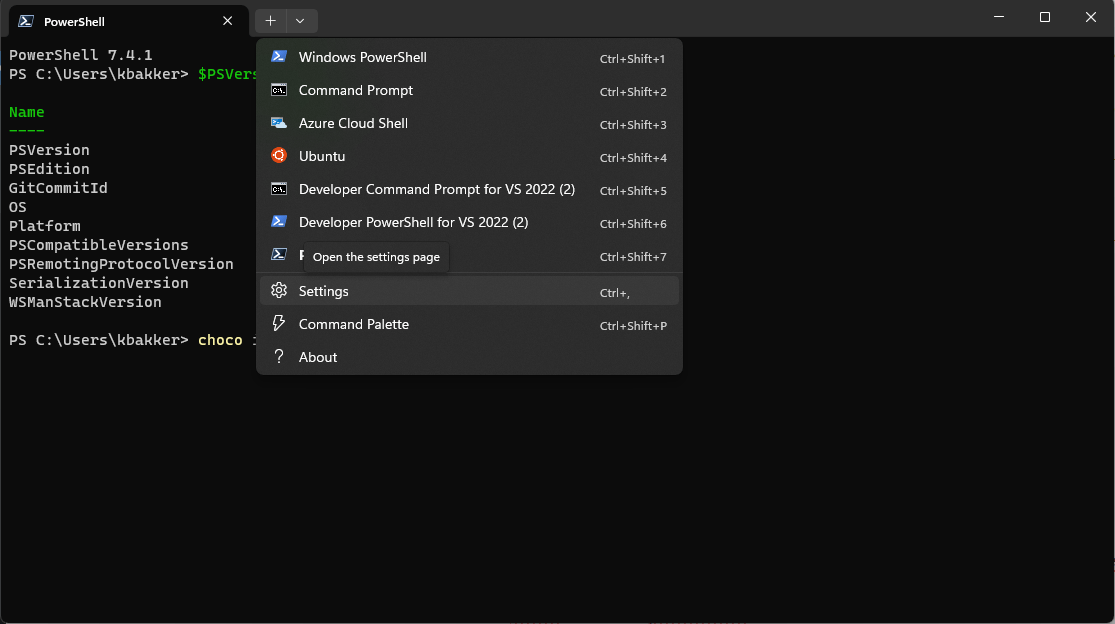
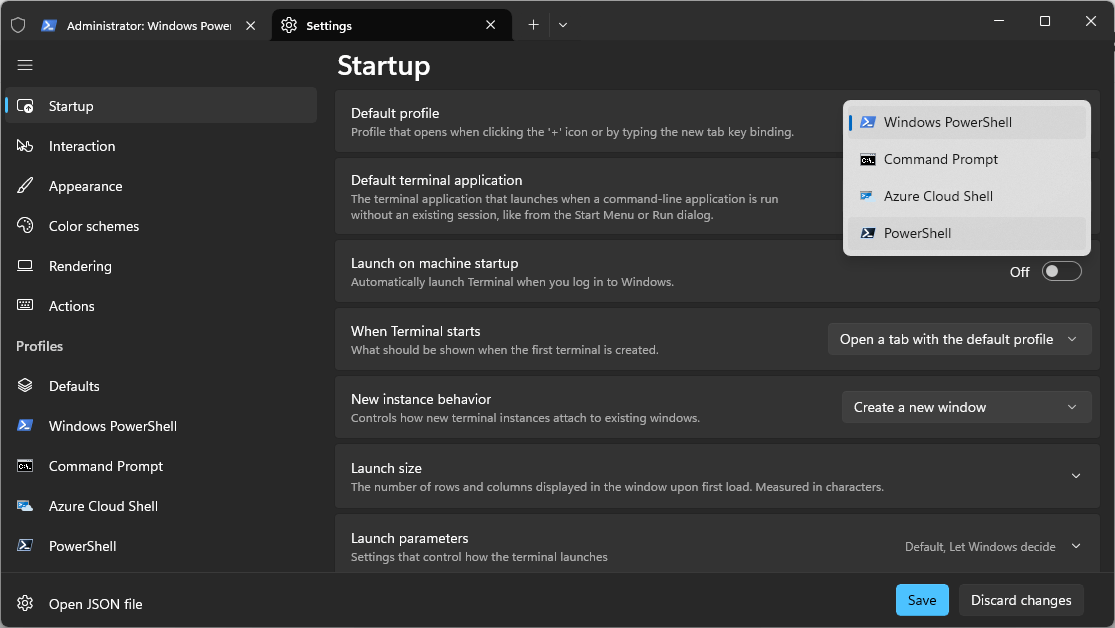
choco install powershell-core -yNow that PowerShell 7 is installed, you'll need to set it as the default profile in Windows Terminal:
Unix utilities
AI assistants often suggest Unix tools such as grep, find and tail, even when you're working on Windows. Microsoft now provides native Windows versions of these utilities, so there's no need to translate every command to its PowerShell equivalent. Install them with WinGet:
winget install Microsoft.CoreutilsThe Microsoft documentation lists all available commands.
I use Brave as my browser. For installation and migration instructions, see Swapping Chrome for Brave on Windows.
Containers with WSL and Rancher Desktop
Rancher Desktop is a free and open-source container management application, with its source code available on GitHub under the Apache 2.0 license. On Windows, it runs on WSL 2 and can provide the Docker API, Docker CLI and Docker Compose through Moby. It does not require the full Hyper-V role, although WSL 2 still uses a managed virtual machine and requires hardware virtualization.
Install WSL 2
Start PowerShell as Administrator and run:
if (!(whoami /groups | findstr S-1-16-12288)) { throw 'Run PowerShell as Administrator.' }

wsl --install
Restart Windows after the installation. The command also installs Ubuntu, which is useful if you want to use WSL directly.
Install Rancher Desktop
Install Rancher Desktop with Chocolatey:
choco install rancher-desktop -yStart Rancher Desktop and select dockerd (Moby) under Preferences > Container Engine. Rancher Desktop automatically adds Docker, Docker Compose and its other command-line tools to PATH.
Verify the installation with:
wsl --status
docker version
docker run --rm hello-world
If you only need containers, you can disable Kubernetes in Rancher Desktop.
Further reading
While working on this blog, I found the following articles, which might be useful:
Changelog
- Added administrator checks to the Chocolatey and WSL installation scripts, linked to the Brave installation article, simplified the WinGet commands and added the taskbar Search tweak.
- Added the Microsoft Coreutils for Windows section and replaced the Hyper-V setup with WSL 2 and Rancher Desktop installation instructions.
- Updated the hibernation script to show the Hibernate option in the Start menu.
- Improved widget removal, consolidated the Windows tweak scripts, added dark taskbar settings and improved the Hyper-V and WSL installation instructions.
- Added the regional culture settings.
- Added a link about disabling adaptive brightness.
- Added the PowerShell installation command.
- Added the better wallpaper section.
- Added the file extension setting for File Explorer.
- Added the further reading section.