

I've finally upgraded to Windows 11. This article is a write-up of the tuning I've applied to my installs (both private and for the company).
Change culture to improve date and time formatting
The following can be used to change the default culture of your Windows (note: it does not change the language).
Set-Culture -CultureInfo nl-NL
Stop-Process -Name explorer -Force
Modify settings using the registry
Let's change multiple settings add once:
- Hide the desktop icons. I just want to see a wallpaper and see what files are on my desktop.
- Remove Bing from the start menu search -- I don't need web search.
- Restore the context menu.
- Show the file extensions in the Explorer.
- Disable the Windows 11 taskbar widgets, as I don't need / use them.
- Use a dark task bar.
Here is the code:
& {
  $basePath = 'HKCU:\Software\Microsoft\Windows\CurrentVersion'
  $steps = 6

  # 1) Desktop icons (set $value = 1 to hide)
  Write-Host "[1/$steps] Setting desktop icons visibility..." -ForegroundColor Cyan
  $value = 0
  Set-ItemProperty -Path "$basePath\\Explorer\\Advanced" -Name HideIcons -Type DWord -Value $value

  # 2) Remove Bing from Start menu search (set $value = 1 to enable)
  Write-Host "[2/$steps] Disabling Bing in Start menu search..." -ForegroundColor Cyan
  $value = 0
  Set-ItemProperty -Path "$basePath\\Search" -Name BingSearchEnabled -Type DWord -Value $value

  # 3) Classic context menu (Windows 10 style)
  Write-Host "[3/$steps] Restoring Windows 10-style context menu..." -ForegroundColor Cyan
  $clsidPath = "$basePath\\..\\Classes\\CLSID\\{86ca1aa0-34aa-4e8b-a509-50c905bae2a2}\\InprocServer32"
  if (-not (Test-Path $clsidPath)) {
    New-Item -Path $clsidPath -Force | Out-Null
  }
  Set-ItemProperty -Path $clsidPath -Name '(Default)' -Value ''

  # 4) File extensions in Explorer (set $value = 1 to hide)
  Write-Host "[4/$steps] Showing file extensions in Explorer..." -ForegroundColor Cyan
  $value = 0
  Set-ItemProperty -Path "$basePath\\Explorer\\Advanced" -Name HideFileExt -Type DWord -Value $value

  # 5) Disable Windows 11 taskbar widgets
  Write-Host "[5/$steps] Removing Windows 11 taskbar widgets..." -ForegroundColor Cyan
  Get-AppxPackage *WebExperience* | Remove-AppxPackage

  # 6) Darkness of our star bar (custom color & disable transparency)
  Write-Host "[6/$steps] Setting dark taskbar and disabling transparency..." -ForegroundColor Cyan
  $personalizePath = "$basePath\\Themes\\Personalize"
  Set-ItemProperty -Path $personalizePath -Name "AppsUseLightTheme" -Value 1 -Type DWord
  Set-ItemProperty -Path $personalizePath -Name "SystemUsesLightTheme" -Value 0 -Type DWord
  Set-ItemProperty -Path $personalizePath -Name "EnableTransparency" -Value 0 -Type DWord

  # Restart Explorer once to apply all changes
  Write-Host "Restarting Windows Explorer to apply changes..." -ForegroundColor Green
  Stop-Process -Name explorer -Force
  Write-Host "All tweaks applied." -ForegroundColor Green
}
Enable Hyper-V management & install WSL
I use Docker / WSL a lot, so I need some extra features to manage them:
& {
  $os = Get-ComputerInfo
  if ($os.OsName -notmatch 'Windows 11 (Pro|Enterprise|Education)') {
    Write-Host "Unsupported edition: $($os.OsName). This script requires Windows 11 Pro/Enterprise/Education."
    break
  }

  if (-not ([Security.Principal.WindowsPrincipal][Security.Principal.WindowsIdentity]::GetCurrent()
    ).IsInRole([Security.Principal.WindowsBuiltInRole]::Administrator)) {
    Write-Host "Please run PowerShell as Administrator."
    break
  }

  $needsRestart = $false
  $features = 'Microsoft-Hyper-V','Microsoft-Hyper-V-All','Microsoft-Hyper-V-Management-Clients','Microsoft-Hyper-V-Management-PowerShell','HypervisorPlatform','VirtualMachinePlatform'

  foreach ($f in $features) {
    $state = (Get-WindowsOptionalFeature -Online -FeatureName $f -ErrorAction SilentlyContinue).State
    if ($state -ne 'Enabled' -and $state) {
      $r = Enable-WindowsOptionalFeature -Online -FeatureName $f -All -NoRestart -ErrorAction SilentlyContinue
      if ($r -and $r.RestartNeeded) { $needsRestart = $true }
    }
  }

  if ($needsRestart) {
    if ((Read-Host "A restart is required to complete installation. Restart now? (Y/N)") -match '^[Yy]$') { Restart-Computer }
    else { Write-Host "Please restart to finish the Hyper-V installation." }
  } elseif ($features | ForEach-Object { (Get-WindowsOptionalFeature -Online -FeatureName $_ -ErrorAction SilentlyContinue).State } | Where-Object { $_ -ne 'Enabled' }) {
    Write-Host "Some features could not be enabled. Please check manually."
  } else {
    Write-Host "✅ Hyper-V is already installed and configured."
  }
}
Now, let's install WSL 2:
wsl --installPowerShell Core
I'm using Chocolatey as my installer of choice. If you don't have it installed, let's do so by:
Set-ExecutionPolicy Bypass -Scope Process -Force; [System.Net.ServicePointManager]::SecurityProtocol = [System.Net.ServicePointManager]::SecurityProtocol -bor 3072; iex ((New-Object System.Net.WebClient).DownloadString('https://community.chocolatey.org/install.ps1'))Now let's use it to install PowerShell Core.
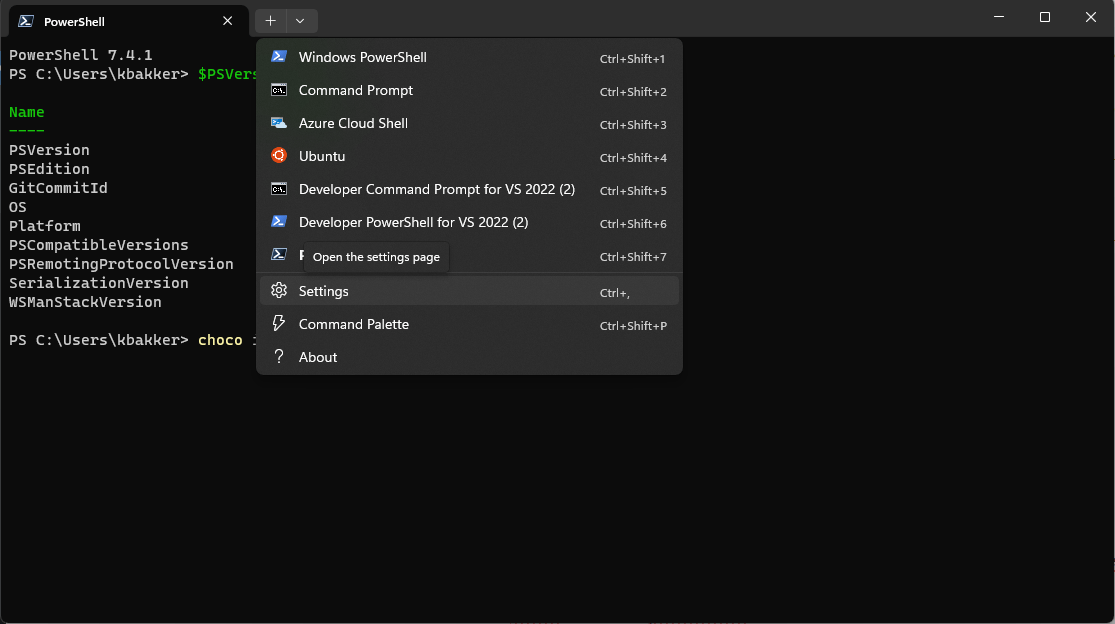
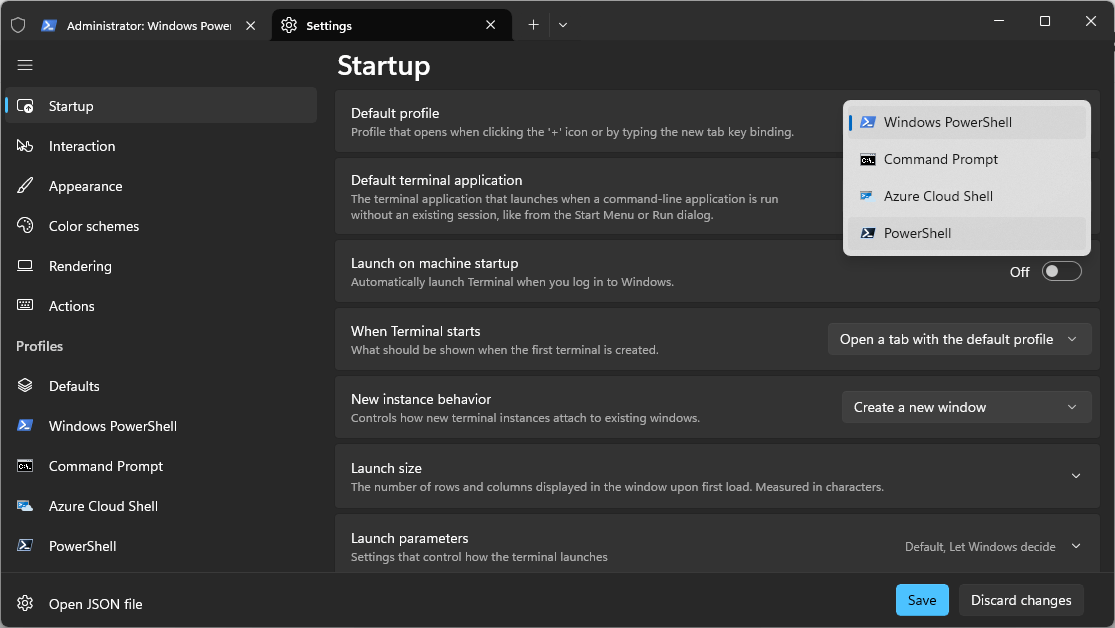
choco install powershell-coreNow that PowerShell is installed, you'll need to set it to default in your Windows Terminal settings:
Hibernation
I want to have hibernation enabled. When I press the button of my laptop, I want it to hibernate and I want the hibernate button to show in my reboot (start) menu.
& {

  if (-not ([Security.Principal.WindowsPrincipal][Security.Principal.WindowsIdentity]::GetCurrent()
    ).IsInRole([Security.Principal.WindowsBuiltInRole]::Administrator)) {
    Write-Host "Please run PowerShell as Administrator."
    break
  }

  # Enable hibernation
  powercfg /hibernate on

  # Start menu button -> Hibernate
  powercfg /setacvalueindex scheme_current SUB_BUTTONS UIBUTTON_ACTION 1
  powercfg /setdcvalueindex scheme_current SUB_BUTTONS UIBUTTON_ACTION 1

  # Physical power button -> Hibernate
  powercfg /setacvalueindex scheme_current SUB_BUTTONS PBUTTONACTION 2
  powercfg /setdcvalueindex scheme_current SUB_BUTTONS PBUTTONACTION 2

  # Apply scheme
  powercfg /setactive scheme_current

  # Ensure Hibernate is visible in Start menu
  reg add "HKLM\SOFTWARE\Microsoft\Windows\CurrentVersion\Explorer\FlyoutMenuSettings" `
    /v ShowHibernateOption /t REG_DWORD /d 1 /f | Out-Null

  # Restart Explorer to refresh UI
  Stop-Process -Name explorer -Force -ErrorAction SilentlyContinue
  Start-Process explorer.exe

  # Output resulting configuration
  powercfg /a
  powercfg /query scheme_current SUB_BUTTONS
}
Better wallpaper
To have more control over the look and feel of Windows 11, install Dynamic Theme by Christophe Lavalle from the Windows Store. It will give you the pictures from the Bing and Windows Spotlight sources.
Further reading
While working on this blog, I found the following articles which might be of service:
- Change DPI to 100%.
- Choco install all the things.
- How to Enable or Disable Adaptive Brightness in Windows 10
- Setup git and GPG and Visual Studio Code.
Changelog
- Make sure we see the hibernation button.
- Improve the removal of the widgets from the taskbar. I've consolidated the scripts for easier use. I've added setting a dark start menu.
- Improved how to install Hyper-V and WSL.
- Added the change culture to improve date and time formatting section.
- Added a link to disabling adaptive brightness.
- Added install command for PowerShell.
- Added the better wallpaper section.
- Added the restore file extensions in Explorer section.
- Added the further reading section.