Taming Unit Test logging in Docker pipeline for .NET

Automated unit tests are the backbone of the testing pyramid. Unit tests enable us to solve bugs using a test driven development strategy. They express both intent and usage and will become more valuable by time.
Last week I changed the way we integrated unit tests in our CI/CD pipeline. Here's our situation:

Logging practices
The main problem of a CI/CD pipeline - in my opinion - is logging. When it logs too little, you don't know what's going on, when it logs too much you can't see the trees to the forest. That's why I adhere to the following principles:
The problem: too much output
Let's view the output of a typical unit test project (xunit) that ran by dotnet test --no-build --no-restore:

Now imagine if you have 9 of these projects. Imagine you don't have color-coded logs.
Get to greps with output
What can we to reduce the output of the unit tests? A couple of things:
Let's use grep with a regular expression to parse the output of the test:
dotnet test --no-build --no-restore 2> /dev/null |
grep -Po '^(Failed|Total|\s+Expect|[^:]+Exception).*$' --color=never
This will produce the following information:

Note that the information is both compact and relevant.
CI/CD implementation
Let's take a look at the CI/CD implementation. In most pipelines a restore and build is done before the test is started. To speed things up, I like to test the release binaries that were generated by the previous steps. Just add -c Release to the test runner command. I also want to output the name of the project before testing it. And I like to have a summary at the end of the test step.
Let's examine the bash script:
echo -n > test.txt

for project in `find ./ -wholename "*UnitTests*.csproj"`; do
    echo "Testing $(basename $project)"
    dotnet test $project --no-build --no-restore -c Release 2> /dev/null |
    grep -Po '^(Failed|Total|\s+Expect|[^:]+Exception).*$' --color=never |
    tee -a test.txt
    echo ""
done

cat test.txt | grep -oP '(?<=Total tests: )\d+' | awk '{ sum += $1 } END { print "Total tests: "sum }'
cat test.txt | grep -oP      '(?<=Passed: )\d+' | awk '{ sum += $1 } END { print "Passed:      "sum }'
cat test.txt | grep -oP      '(?<=Failed: )\d+' | awk '{ sum += $1 } END { print "Failed:      "sum }'
cat test.txt | grep -oP     '(?<=Skipped: )\d+' | awk '{ sum += $1 } END { print "Skipped:     "sum }'

echo ""

TESTFAILED=$(cat test.txt | grep -oP '(?<=Failed: )\d+' | awk '{ sum += $1 } END { print sum }')
rm test.txt

if [[ $TESTFAILED -ne 0 ]] ; then
    echo "Unit test(s) failed."
    exit 1
fi
Commands like tee, cat, grep and awk are part of any Linux installation. When the script runs it looks way better:
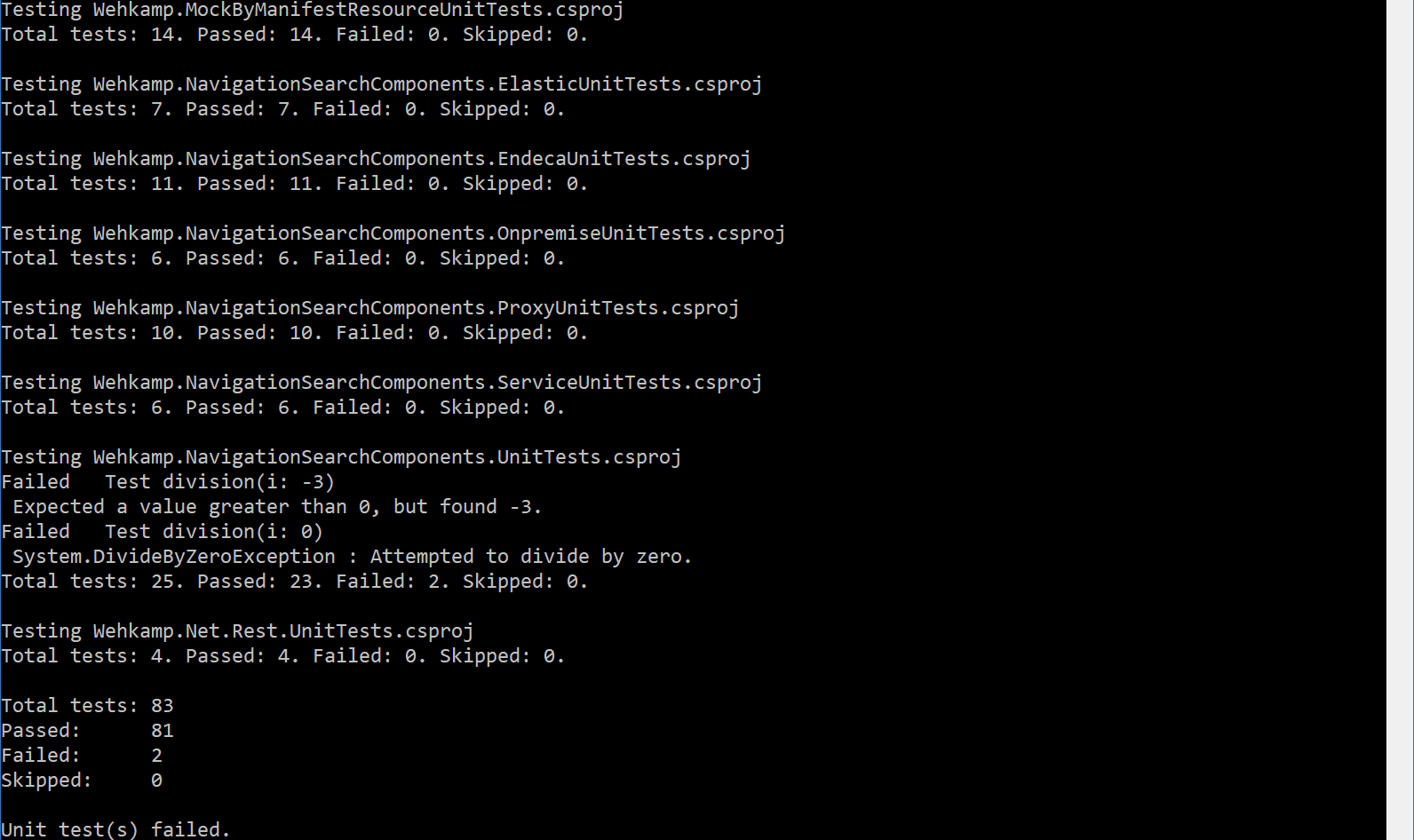
So there you have it. Turn off the noise; be more effective.
Note: the screenshots are taken from bash on Windows. I don't use Linux to develop, only to do CI/CD. Installing bash on Windows will help to debug your CI/CD scripts.