# Convert JsFiddle to SVG using Node.js
**Date:** 2019-06-21
**Author:** Kees C. Bakker
**Categories:** Automation, Node.js
**Original:** https://keestalkstech.com/convert-jsfiddle-to-svg-using-node-js/

---
I love SVG as a format. But if you want to make a schema or diagram, it is hard to create. A lot of pointing and clicking when you use Adobe Illustrator or Inkscape. There must be a better way. You can always program SVG with an editor, but that's also a lot of work; you'll need to know about paths and shapes.
HTML is way easier to program. What if we could use HTML to generate an SVG? What if we could even use a tool like JSFiddle to create some HTML and generate that into an SVG?
The use case for this article was the following diagram:
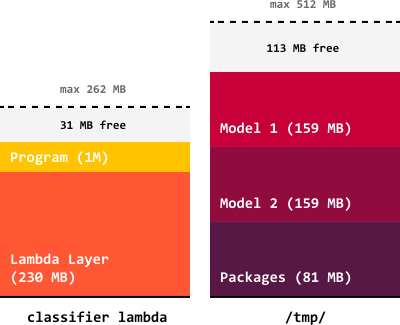
*SVG Image used by AWS Lambda Size: PIL+TF+Keras+Numpy?*
I've created the image with [this JsFiddle](https://jsfiddle.net/KeesCBakker/yznwsuc4/). It has some nice properties:
- It uses a table to generate the layout; an easy way to align texts vertically and "draw" rectangles that are aligned.
- It uses a Google font for its text, a font that might not be available to the viewer.
- It uses CSS for the visual properties.
So let's see how we can convert the JSFiddle to SVG doing the following steps:
- Get the HTML/CSS from JSFiddle into a single HTML blob.
- Convert the blob to a PDF.
- Convert the PDF to an SVG with the texts serialized as paths.
- Convert the SVG to an optimized SVG that is smaller.
- Open up all the results for debugging.
## Getting JsFiddle content
Let's get the HTML and CSS from JsFiddle first. We'll use the [JsFiddle API for NodeJS](https://www.npmjs.com/package/jsfiddle) package from NPM:
```sh
npm install --save jsfiddle
```
Let's take the JsFiddle URL and get the identifier (including the version) from it. We'll combine the HTML and the CSS to a single string. To measure the size of the SVG, we'll wrap it in a div that is `inline-block`.
```js
const JSFiddle = require("jsfiddle");
async function getJsFiddleHtml(url) {
const identifierRegex = /(https?:\/\/jsfiddle.net\/[^/]+\/)?(.+)$/i
const match = identifierRegex.exec(url)
if (!match) {
throw "Could not find an identifier!"
}
const identifier = match[2]
return await new Promise((resolve, reject) => {
JSFiddle.getFiddle(identifier, (err, fiddle) => {
if (err) return reject(err)
const reset = 'margin:0;padding:0;border:0;'
let html = ``
html += ``
html += ``
html += fiddle.html
html += '
'
resolve(html)
})
})
}
```
I've wrapped the `getFiddle` in a Promise, so we can use it with an `await`.
## HTML to PDF with Puppeteer
Once we have the HTML string, we can convert it to a PDF using the [Headless Chrome Node API: Puppeteer](https://github.com/GoogleChrome/puppeteer/blob/master/README.md). Long live NPM:
```sh
npm install puppeteer --save
```
We have wrapped the original HTML and CSS into a div. We'll use the height and width of this div to generate a PDF that is the right size.
```js
const puppeteer = require("puppeteer");
async function convertHtmlToPdf(html) {
const settings = {
pageRanges: '1',
displayHeaderFooter: false,
printBackground: true
}
// setup browser
const browser = await puppeteer.launch({
headless: true,
args: ["--no-sandbox", "--disable-setuid-sandbox"]
});
const page = await browser.newPage()
await page.setContent(html)
// calc size
const size = await page.evaluate(() => {
const div = document.querySelector('#_')
return {
height: div.offsetHeight + 'px',
width: div.offsetWidth + 'px'
}
})
// wait until all images have loaded
await page.evaluate(async () => {
const selectors = Array.from(document.querySelectorAll("img"))
await Promise.all(selectors.map(img => {
if (img.complete) return
return new Promise((resolve, reject) => {
img.addEventListener('load', resolve)
img.addEventListener('error', reject)
})
}))
})
// wait a second for other resources
await new Promise(resolve => {
setTimeout(resolve, 1000);
});
// debug screenshot for debugging
await page.screenshot({
path: './screen.png',
type: "png",
omitBackground: "true",
clip: {
x: 0,
y: 0,
width: parseInt(size.width),
height: parseInt(size.height)
}
});
// print PDF
const buffer = await page.pdf(Object.assign(settings, size));
await browser.close();
return buffer;
}
```
We now have a PDF buffer we can convert to SVG.
## Convert PDF to SVG using Inkscape
I'm a big fan of [Inkscape](https://inkscape.org/) to create and edit SVG files. Many people do not know that it can also be used as a [command-line tool](https://inkscape.org/doc/inkscape-man.html) to serialize PDF's to SVG or PNG. The[ Inkscape package](https://www.npmjs.com/package/inkscape) helps us to use the CLI to convert the PDF using Node. Because it works with streams, we'll convert the buffer into a stream using the [Streamify package](https://www.npmjs.com/package/streamify).
```sh
npm install streamify --save
npm install inkscape --save
```
The code for talking to Inkscape is quite small:
```js
const streamifier = require('streamifier');
const Inkscape = require('inkscape');
const pdfToSvgConverter = new Inkscape([
'--export-plain-svg',
'--import-pdf',
'--export-text-to-path'
]);
function convertPdfToSvg(buffer, destination) {
const stream = streamifier.createReadStream(buffer);
stream.pipe(pdfToSvgConverter).pipe(destination);
}
```
For Windows I also needed to add the `C:\Program Files\Inkscape` directory to my `path`, so Inkscape can be launched by the package.
Note: I'm exporting the texts as paths, so I'm not dependent on fonts being available anymore. This will make the SVG somewhat bigger.
## Optimize the SVG
Next, we'll need to optimize the SVG using the [SVG Optimizer](https://www.npmjs.com/package/svgo):
```sh
npm install --save
```
We'll read the steam into a string and optimize it:
```js
const SVGO = require('svgo');
async function optimizeSvg(stream) {
const data = await new Promise((resolve, reject) => {
const chunks = [];
stream.on('data', chunk => chunks.push(chunk))
stream.on('error', reject)
stream.on('end', () => resolve(Buffer.concat(chunks).toString('utf8')))
})
const svgo = new SVGO({})
const osvg = await svgo.optimize(data)
return osvg.data
}
```
## Let's use them together
Now what? Let's sticht the methods together and open up all the resources we've created.
```sh
npm install opn --save
```
Let's stitch all the little parts together:
```js
const open = require('open')
const run = (async function () {
try {
const url = process.argv[2]
console.log(`Processing: '${url}'...`)
console.log('Getting HTML...')
const html = await getJsFiddleHtml(url)
fs.writeFileSync('./in.html', html)
console.log('Converting HTML to PDF...')
const pdf = await convertHtmlToPdf(html)
fs.writeFileSync('./out.pdf', pdf)
console.log('Converting PDF to SVG ...')
const svg = convertPdfToSvg(pdf)
svg.pipe(fs.createWriteStream('./out.svg'))
console.log('Optimizing SVG...')
const osvg = await optimizeSvg(svg)
fs.writeFileSync('./out.optimized.svg', osvg)
console.log('Converting SVG to PNG...')
const png = convertSvgToPng(osvg)
png.pipe(fs.createWriteStream('./out.png'))
console.log('Opening files...')
open('./in.html')
open('./out.pdf')
open('./out.svg')
open('./out.optimized.svg')
open('./screen.png')
console.log('Done.')
}
catch (ex) {
console.error("Sorry, we've crashed.", ex)
}
})
run()
```
You can start it from the command-line by doing:
```sh
node index.js https://jsfiddle.net/KeesCBakker/yznwsuc4/
```